
DOWNLOAD
Download SUMn.
SUMn runs on Windows 10 and 11. You will need the licence key from your purchase email, or another SUMn computer on the same network that can share its licence.

Installing in five steps
1
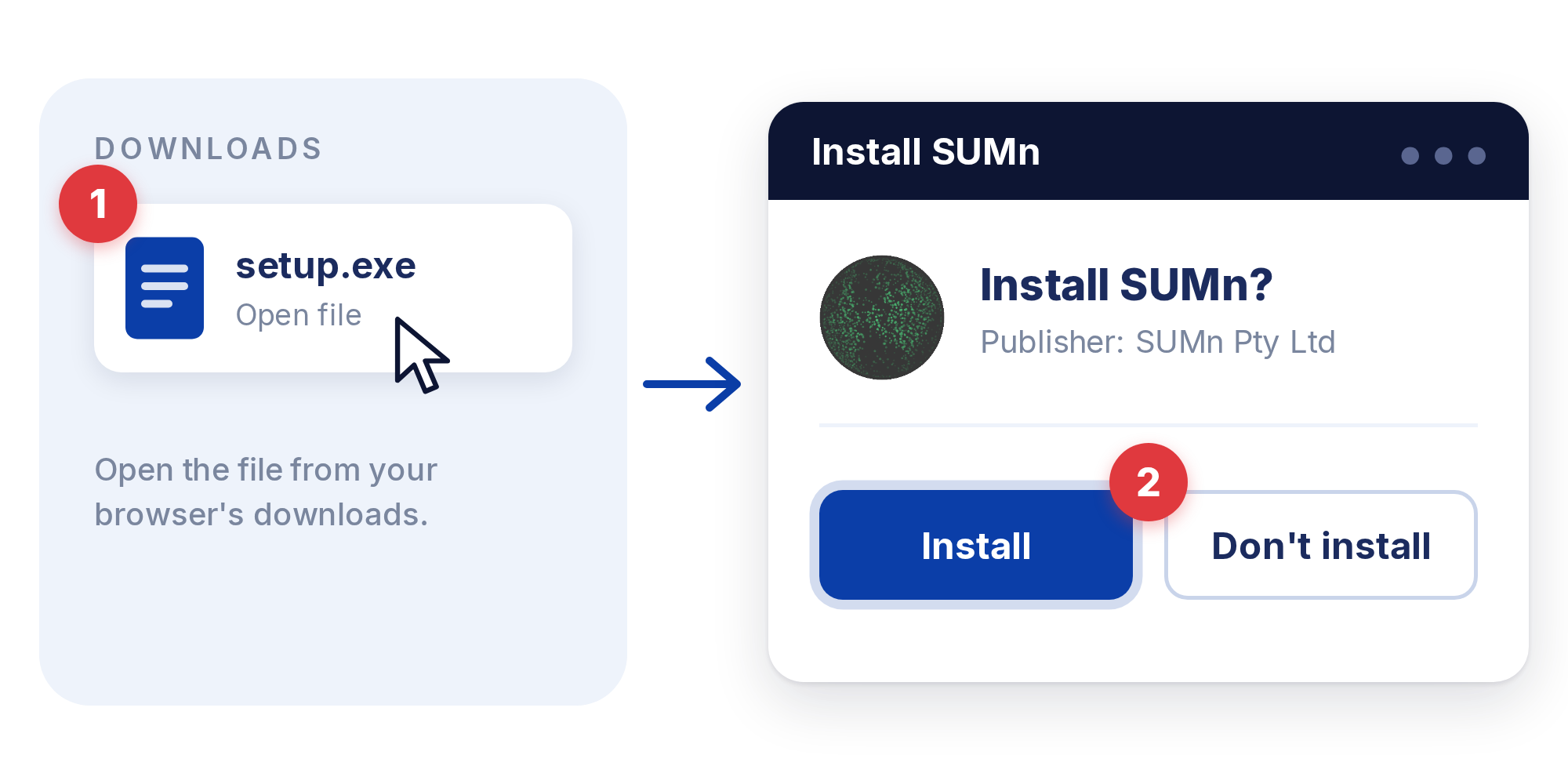
Run the installer
Open the file you downloaded and follow the prompts.
4
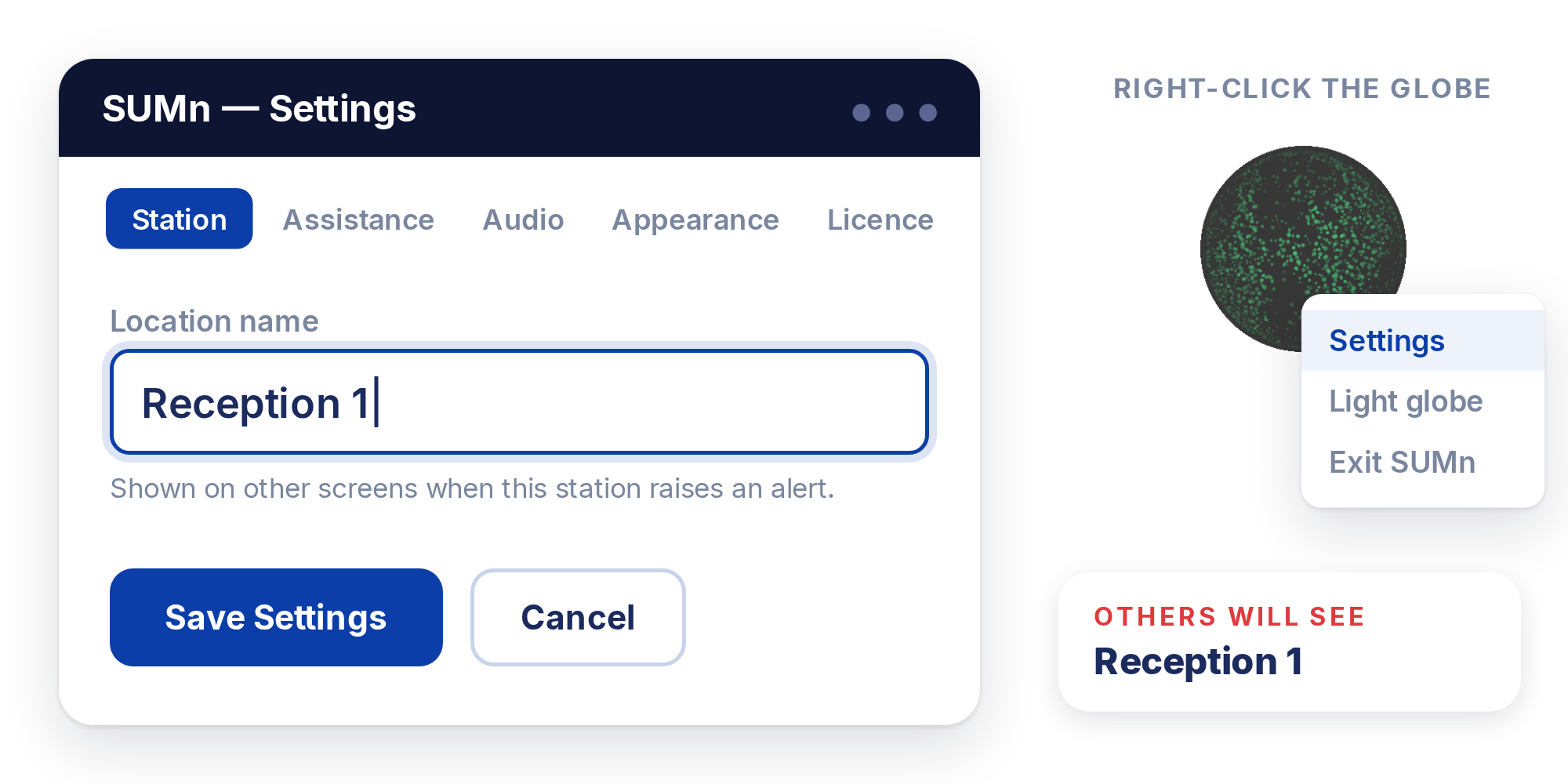
Name the station
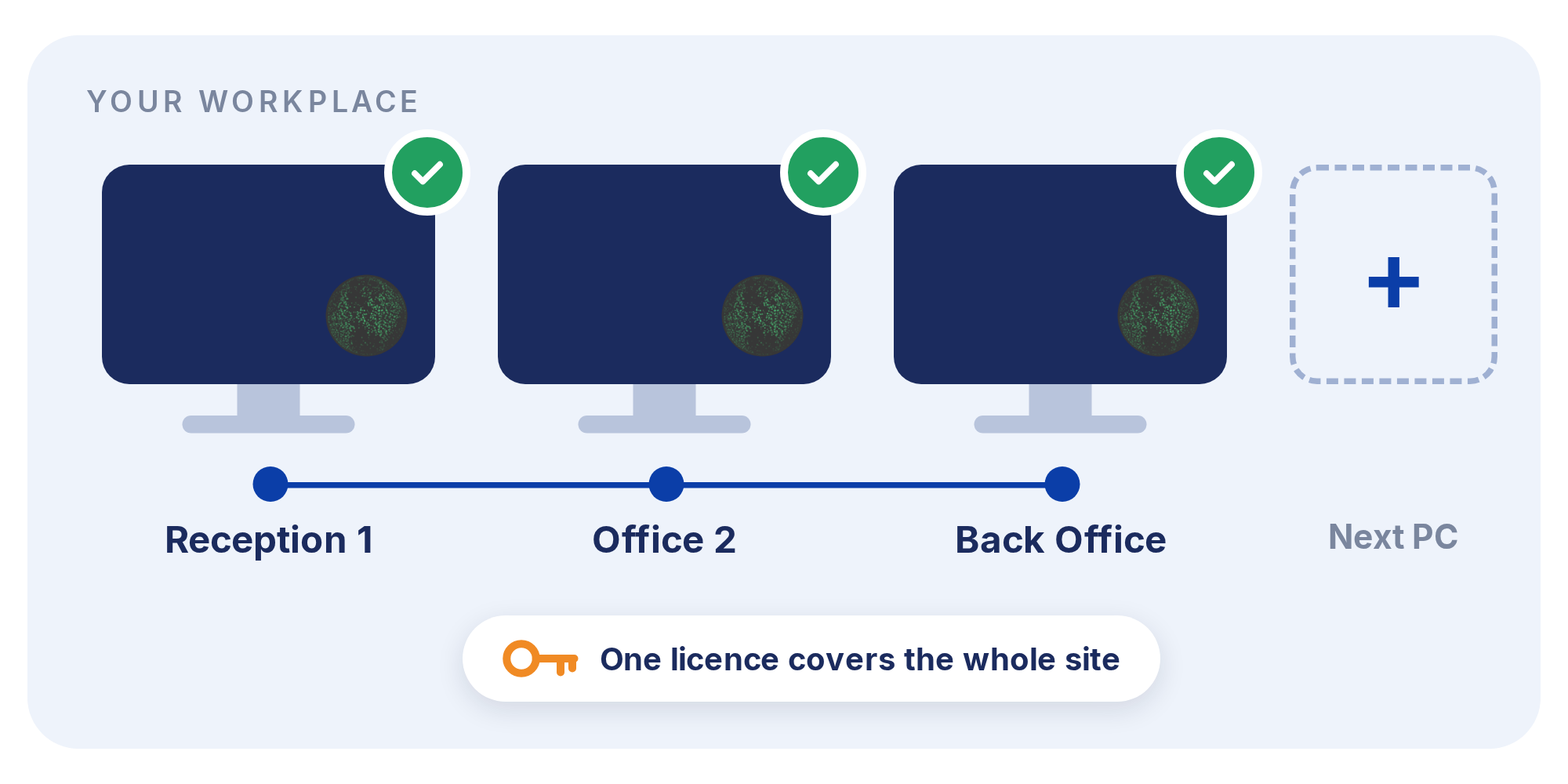
Give it a name people will recognise, such as Reception 1.
2
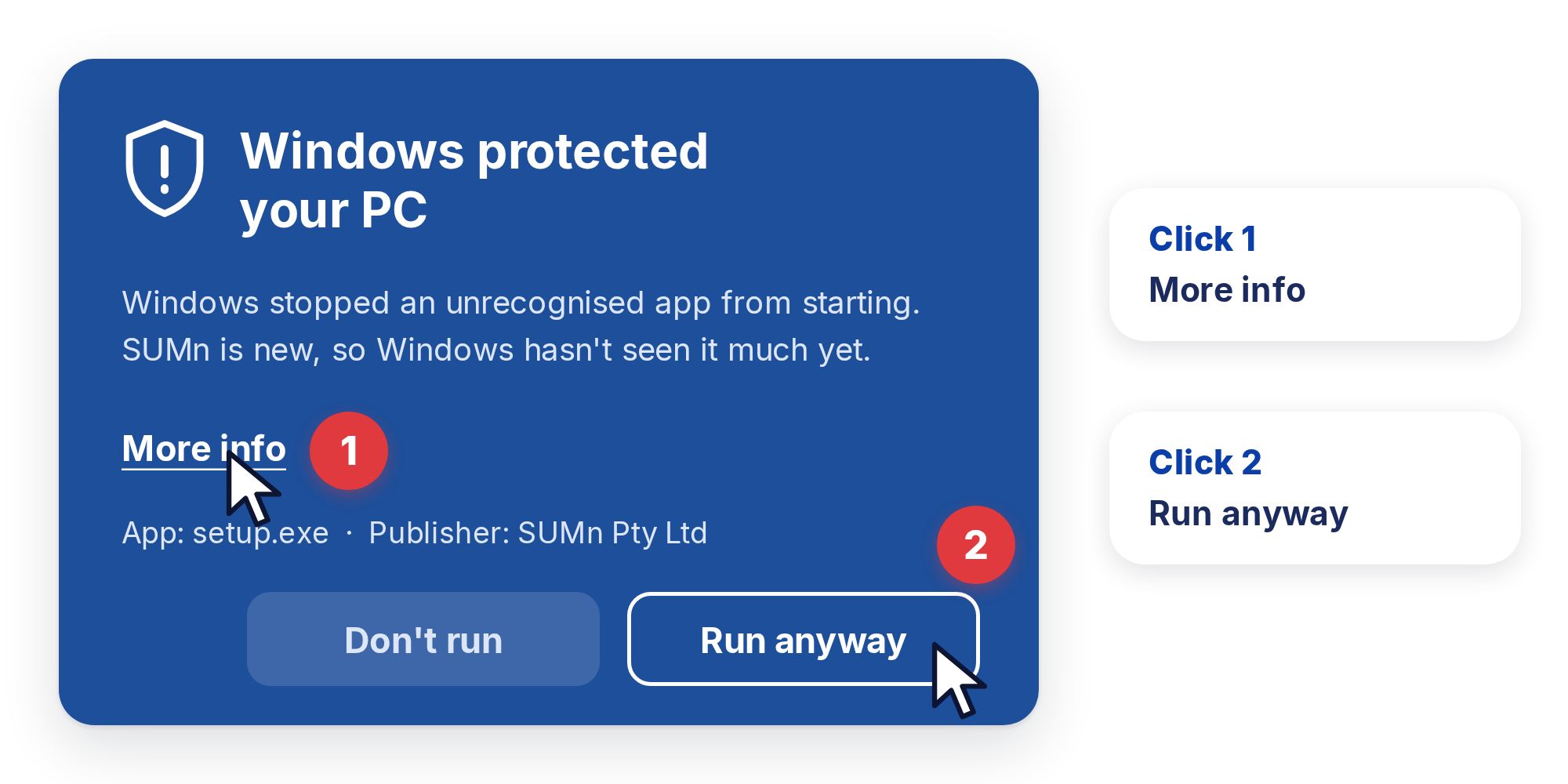
Allow it to run
If Windows shows “Windows protected your PC”, click More info, then Run anyway. If Windows asks about the firewall, click Allow access.
3
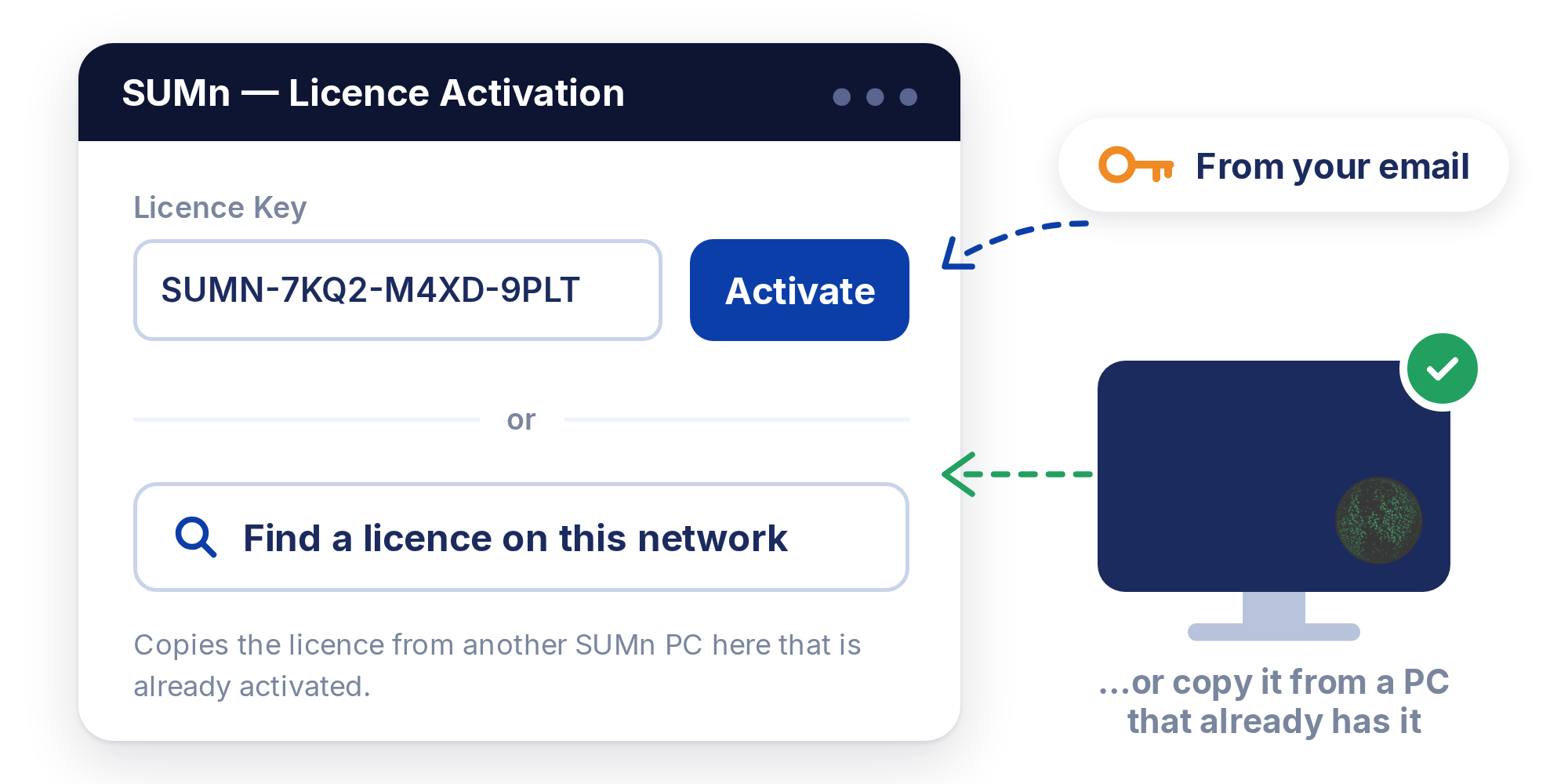
Activate
Enter your licence key, or choose Find a licence on this network.
5
Repeat
Install SUMn on every computer at the site. They will find each other automatically.
Tip
Check the globe
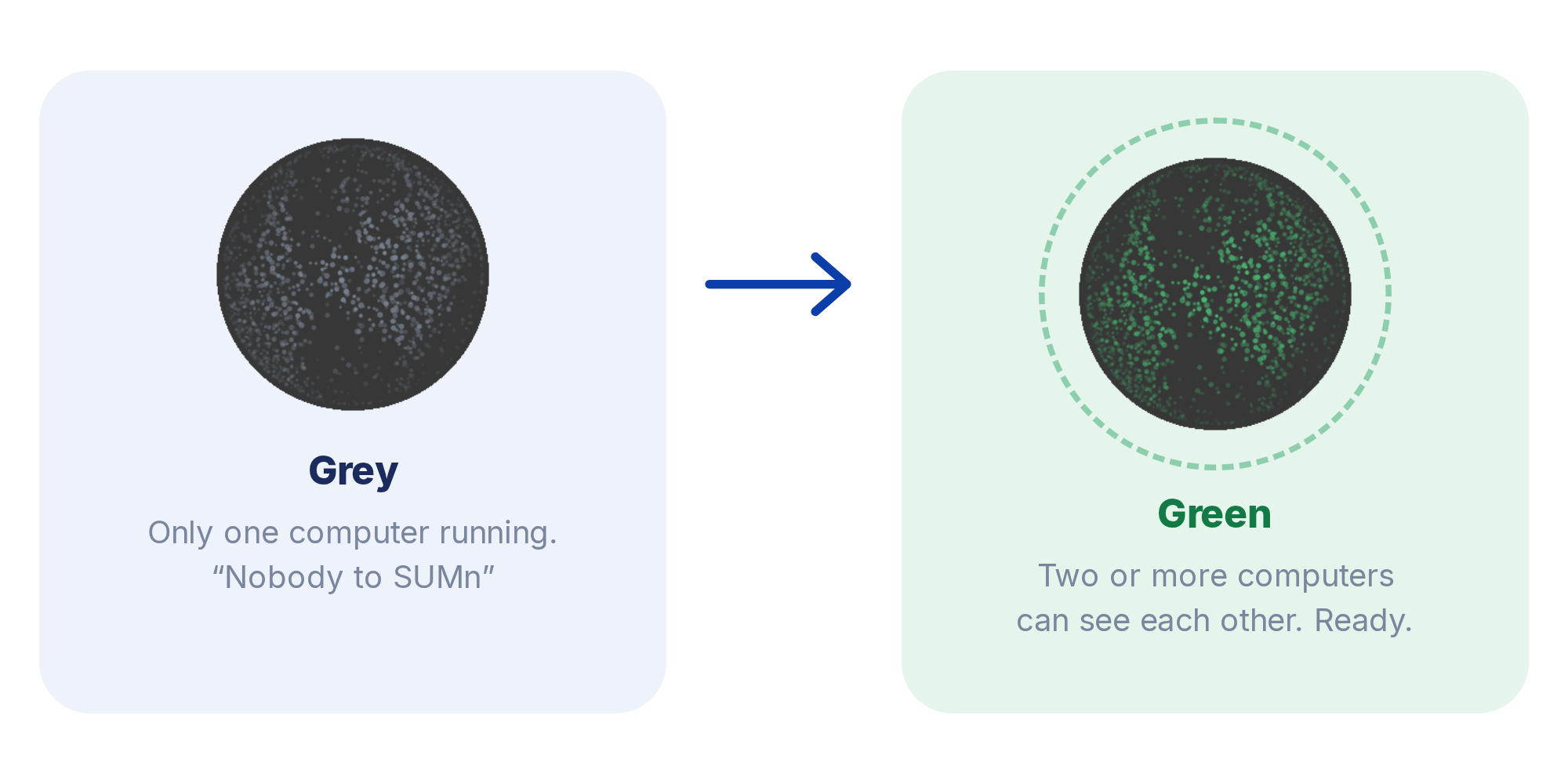
Once two or more computers are running SUMn, the globe turns green to show they can see each other.
Need a hand getting set up?
The setup guide covers every step, our support page answers the common questions, or email support@sumn.com.au.